Your reMarkable notes as editable ink in OneNote
NotebookSync automatically puts your handwritten reMarkable notes into OneNote: as real, editable ink and with your own folder structure. No images, no conversion to text.
For Windows · free to use with up to 3 notebooks
What does NotebookSync do?
Real ink, not an image
Your handwriting becomes OneNote ink that you can select, move and erase, in the colours of your pens and highlighter. Typed text and images come along too.
Your own folder structure
Folders become section groups, notebooks become sections and every tablet page a OneNote page. Rename or move something on the tablet and OneNote follows.
Automatic, in the background
NotebookSync runs in the notification area and works with the free reMarkable desktop app: write on the tablet and shortly after it is in OneNote.
Your additions stay
Type or draw something on a page in OneNote and it stays when you update that page on the tablet afterwards.
Also from OneNote to the tablet
A new section in OneNote goes to your reMarkable as a new notebook, over USB or as a file to import.
Your notes stay yours
Everything happens on your own PC, between the reMarkable app and the OneNote app. Your notes are not sent to us or to any other service.
How it works
1. Install
Install the reMarkable desktop app and NotebookSync on your Windows PC. You already have OneNote.
2. Choose
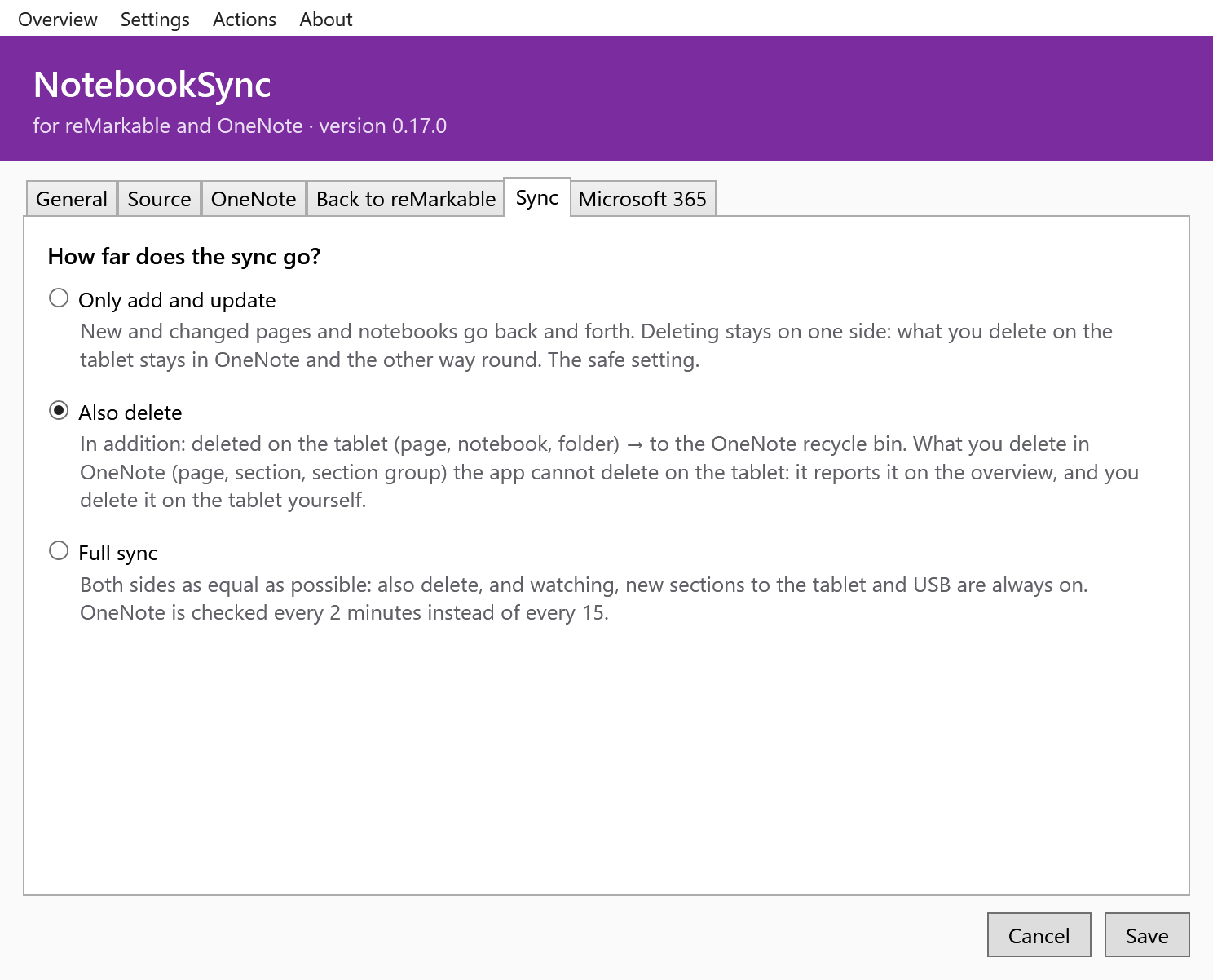
Choose in NotebookSync the OneNote notebook for your reMarkable notes, and how far the sync goes.
3. Write
Just write on your reMarkable. NotebookSync puts new and changed pages into OneNote by itself.
Requires: Windows 10 or 11 (64-bit), the OneNote app for Windows (Microsoft 365), the reMarkable desktop app and the .NET 10 Desktop Runtime (free from Microsoft; the installer helps you get it). Tested with the reMarkable Paper Pro. Annotated PDFs are not transferred yet.
What it looks like
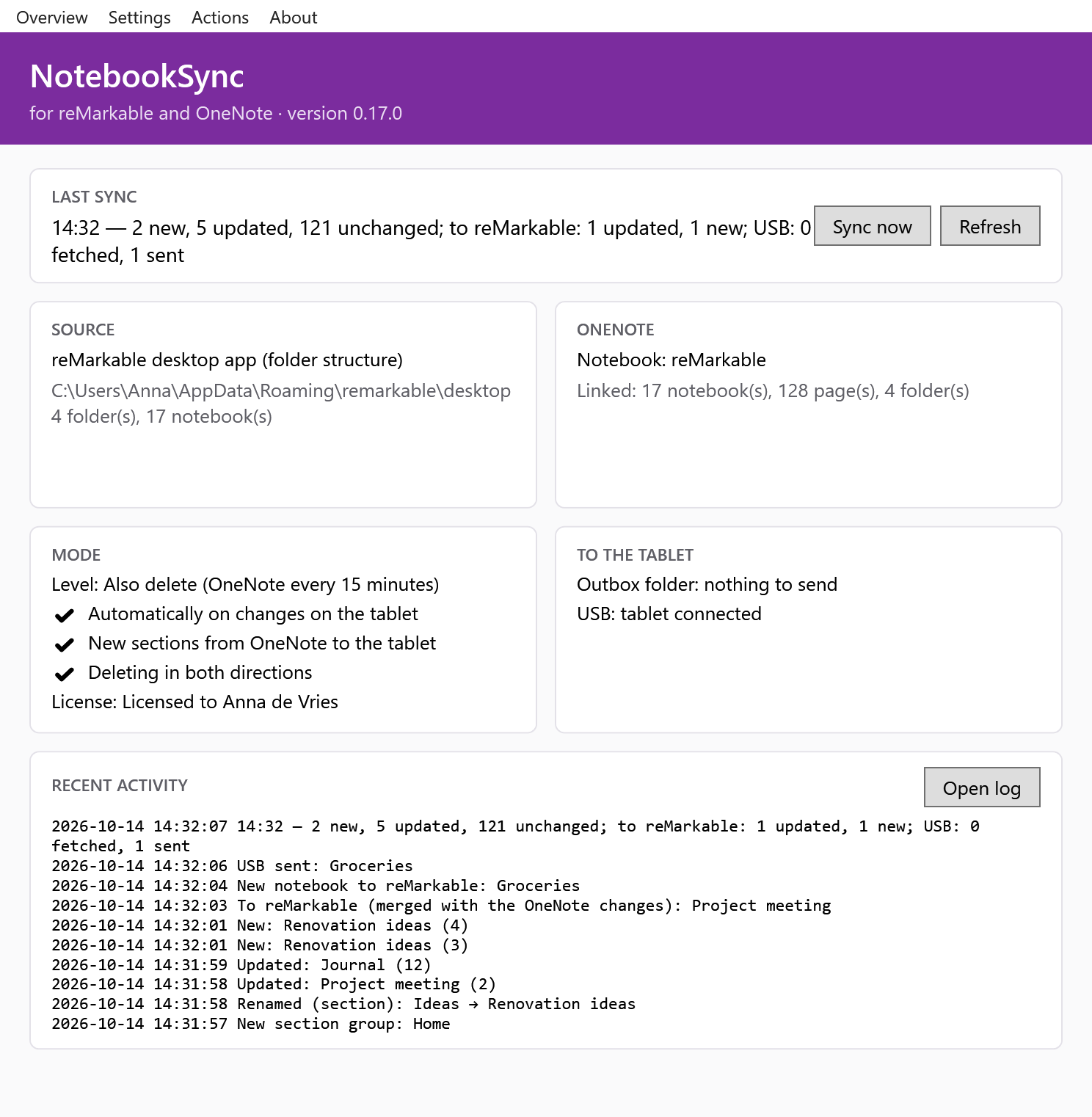
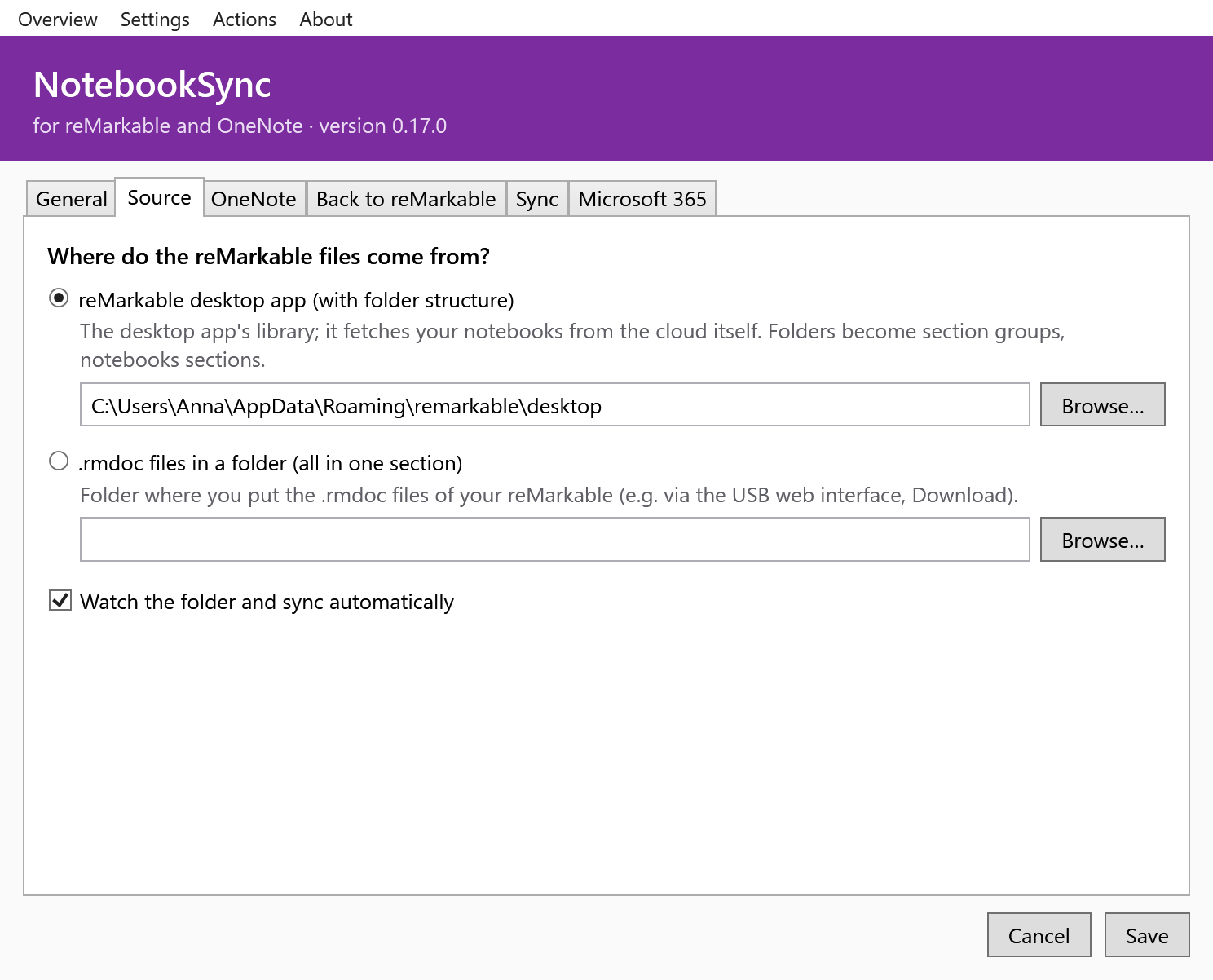
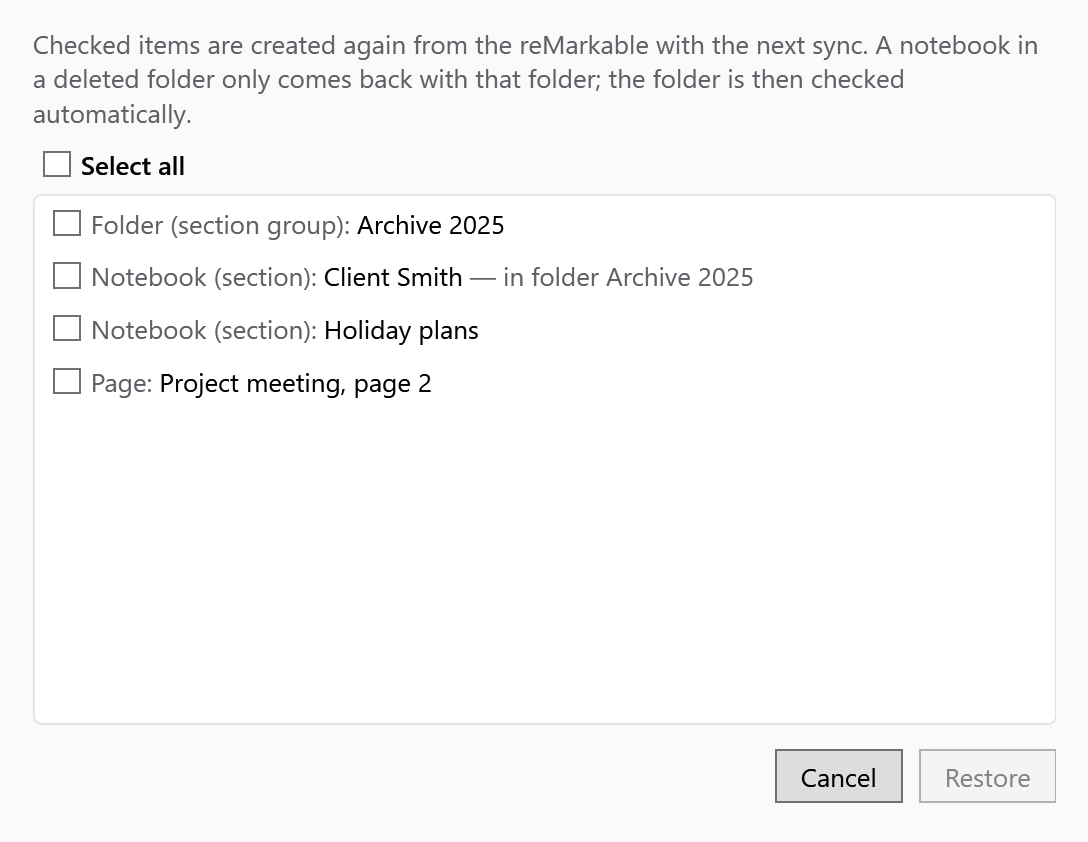
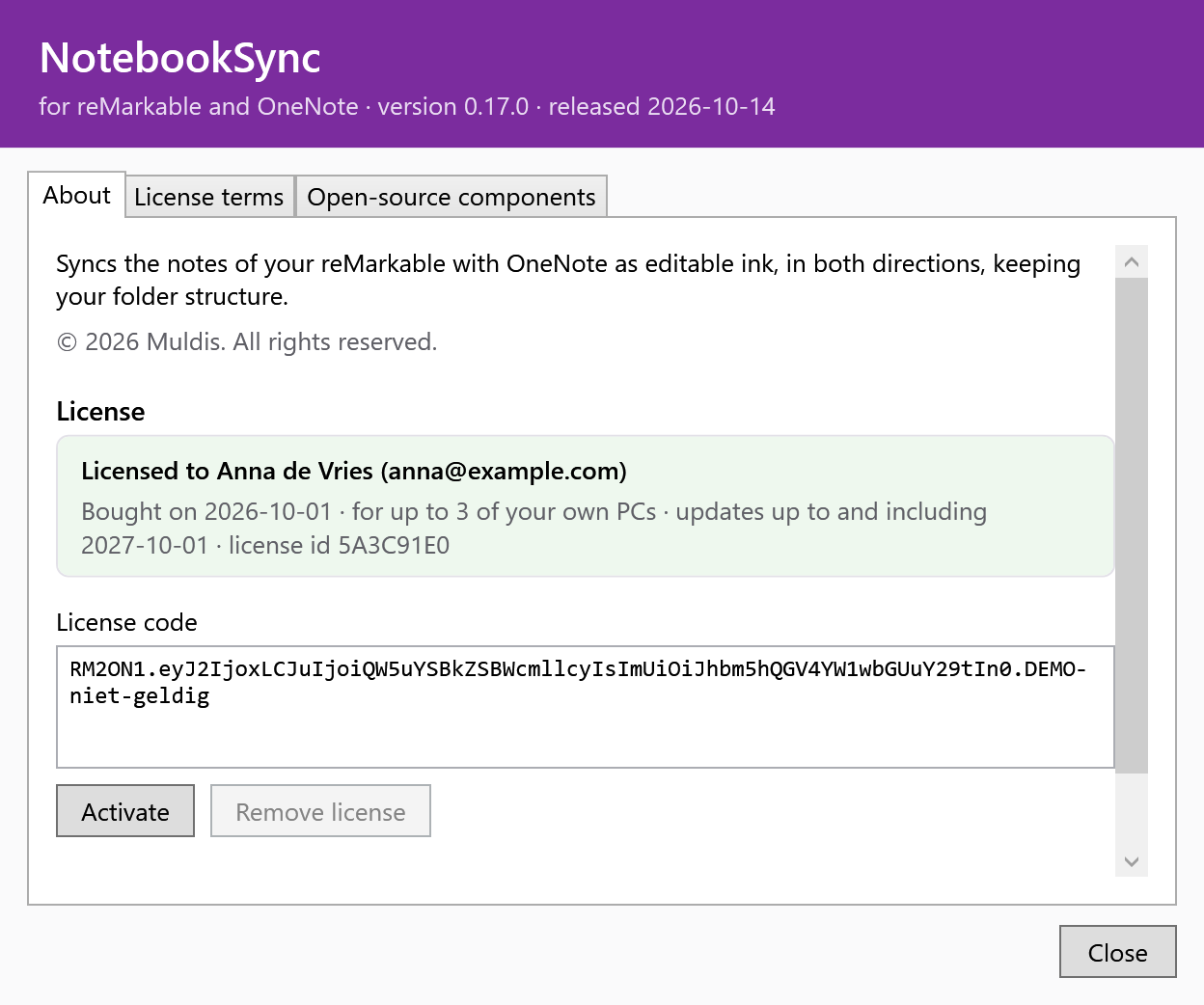
With sample names and data. Click a screen to see it full size.
Pricing
License
€42.35 incl. 21% VAT · one-off
- All your notebooks
- In your name, for up to 3 of your own PCs
- Keeps working forever; with all new versions of the first year
- License code by e-mail right away, with invoice